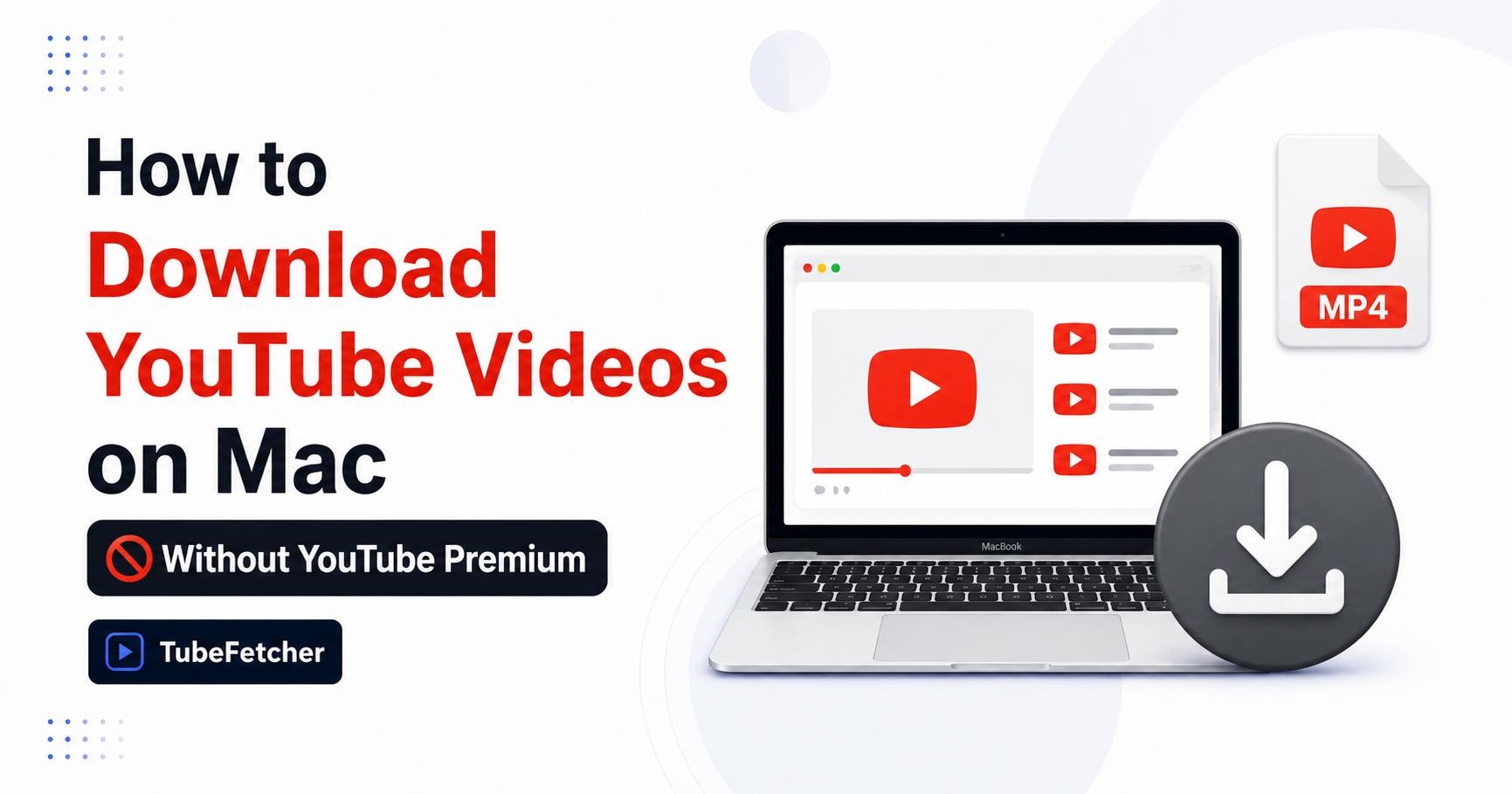
YouTube Premium gives you offline viewing inside the YouTube app, not a downloadable file you can keep. The video sits in an encrypted cache for 29 days and disappears if you cancel. Premium downloads on desktop also do not work in Safari.
To get a real MP4 or MP3 on your Mac, you need a different tool. This guide covers the four options that work without Premium, what each one gives you, and where the trade-offs sit.
What YouTube Premium actually gives you on Mac
Premium is offline viewing, not file ownership. The video plays inside the YouTube app or browser tab while signed in. The cache expires after 29 days, the file cannot be moved or edited, and the content disappears the moment the subscription ends.
Three more limits matter on Mac:
- Premium download on desktop runs only in Chrome, Edge, Firefox, and Opera. Safari is not supported.
- The cached file is not an MP4. Video editors, USB drives, and third-party players cannot open it.
- A signed-in Premium account is required every time the file plays.
Premium fits one workflow: watching inside the YouTube app while offline. For any other use, the question stops being “Premium or not” and starts being “which downloader.”
When Premium is the right answer
Premium suits users who watch inside the YouTube app during commutes or flights, want ad-free streaming, and do not need a portable file. The 29-day expiry is acceptable as long as the account stays active.
When Premium is not enough
Editing, transferring to an iPhone outside YouTube, archiving for years, working in Safari, or saving anything that survives a cancelled subscription — none of these work through Premium. A real file solves all five.
Premium vs. a real file: the honest comparison
The five options on Mac differ on cost, file type, and what they cap. The table shows where each fits.
| Option | Cost | File type | Portable | Quality cap | Works in Safari |
| YouTube Premium | $13.99/month | Encrypted cache | No | 1080p | No |
| TubeFetcher (Mac app) | Free | MP4 / MP3 | Yes | Source quality | Yes |
| yt-dlp (Terminal) | Free | MP4 / MP3 | Yes | Up to 8K | N/A |
| Browser tool | Free | MP4 | Yes | Often 720p | Yes |
| macOS screen recording | Free | MOV | Yes | Screen resolution | Yes |
The portable column drives most decisions. Anything marked “Yes” produces a file the user owns. The “No” row is Premium.
Download YouTube videos on Mac with TubeFetcher
TubeFetcher downloads YouTube videos on Mac as a real MP4 or MP3 file. The app runs as a Universal build, so it works on both Intel and Apple Silicon Macs. No subscription, no cap, no login, no ads.
The process uses four steps:
- Open the YouTube video in any browser, including Safari, and copy the URL from the address bar.
- Paste the link into TubeFetcher.
- Choose MP4 video or MP3 audio with your preferred quality.
- Start the download. The file saves locally to your Mac.
TubeFetcher works in Safari, which Premium does not. The file stays on the machine after download, transfers to other devices, and survives any account change. For users who want a portable file without learning Terminal, this is the no-friction route.
Download TubeFetcher for Mac, Linux, Windows, or Android.
yt-dlp for advanced users
yt-dlp is the most-recommended free tool in the Mac community. It downloads videos at any quality the source provides, including 8K, and handles every edge case. The trade-off is Terminal.
Install via Homebrew:
brew install yt-dlp ffmpeg
Download a single video:
yt-dlp “VIDEO_URL”
Extract audio as MP3:
yt-dlp -x –audio-format mp3 “VIDEO_URL”
yt-dlp updates almost daily and bypasses the speed throttling that affects older tools. For users comfortable on the command line, no GUI matches its power. For a paste-and-click workflow, the desktop app above is faster.
Browser-based tools (no install)
Web converters like Y2Mate, Lynote, and Cobalt download videos in the browser. They suit single, public clips when no install is acceptable.
Three real limits apply:
- Most browser tools cap downloads at 720p because they cannot merge YouTube’s separate audio and video streams.
- Many sites carry aggressive pop-up ads and fake download buttons that redirect to phishing or installer pages.
- Your video URL passes through a third-party server, which creates exposure for private or sensitive links.
Cobalt’s main instance lost YouTube support in mid-2025. Tool availability shifts often in this category. Use browser routes for short public videos only.
Built-in macOS screen recording
The Command + Shift + 5 shortcut opens the macOS recording toolbar. The method captures whatever plays on screen and saves a MOV file.
Three limits make this a fallback, not a primary method:
- Recording takes as long as the video itself
- The capture picks up cursor movement, notifications, and audio from the wrong source unless every setting is configured first
- Playlists and subtitles are out of scope
Use screen recording for one short clip when nothing else works.
Is it legal to download YouTube videos without Premium?
YouTube’s Terms of Service permit downloads only through official features like Premium offline. Personal, permission-based use carries minimal risk: your own content, Creative Commons material, or content the creator has approved. Redistribution of copyrighted material creates legal exposure regardless of the tool.
Two safety rules apply to every method on this page:
- Never enter your Google password into a third-party downloader. Legitimate tools that need account access read your existing browser session, never your password.
- Never paste a private or sensitive video link into a web converter. The link passes to a third-party server and can be logged.
For a deeper look at downloader safety, see our guide on whether YouTube downloaders are safe.
Which option fits your situation
Match the method to what you actually need from the file:
- Watch offline inside the YouTube app only: Premium.
- Keep a portable MP4 or MP3 with no Terminal: TubeFetcher.
- Comfortable on the command line, want maximum power: yt-dlp.
- One short public clip, no install: browser tool.
- Nothing else works on this specific video: screen recording.
Which TubeFetcher build to use
TubeFetcher runs on four platforms. Pick the build that matches your device.
- Mac: Universal app for Intel and Apple Silicon.
- Linux: AppImage that runs with no installation.
- Windows: Standard installer.
- Android: Universal APK for all devices.
Get every build on the TubeFetcher downloads page.
Frequently Asked Questions
Can you download YouTube videos to your computer with Premium?
Premium downloads on desktop save an encrypted cache that plays only inside the YouTube tab. The file is not a portable MP4 and expires after 29 days.
Does YouTube Premium work on Safari?
No. Premium downloads on desktop run only in Chrome, Edge, Firefox, and Opera. Safari users need a third-party downloader to save videos.
How long do Premium downloads last?
Premium downloads play offline for up to 29 days. After that, the device needs to reconnect to YouTube to verify the subscription and refresh the cache.
Can I keep a Premium download after cancelling my subscription?
No. Cancelling Premium revokes access to every download immediately. The cached files stop playing.
Is it legal to download YouTube videos without Premium?
Permission-based use is the safe scope: your own content, Creative Commons material, or content with the creator’s permission. Redistribution creates legal exposure regardless of method.
Mac and Linux guides for specific download tasks
The methods above cover single videos. For playlists, private content, or Linux workflows, the specific guides go deeper.
- How to Download a YouTube Playlist on Mac — full playlists without the 25-video caps of freemium apps.
- How to Download Private and Unlisted YouTube Videos on Mac — the safe method for content you have permission to access.
- How to Download YouTube Videos on Linux (No Terminal Required) — GUI and AppImage options for Ubuntu, Mint, Fedora, and Debian.