To download YouTube videos on a PC, use a privacy-respecting software like TubeFetcher. It’s a native desktop YouTube downloader for Windows that allows you to save MP4 or MP3 files directly to your hard drive with no tracking, no browser plugin, and no account. Copy the video URL, paste it into TubeFetcher, pick your quality and format, and download the video with a single click. (For formats, see Best YouTube to MP4 Converter (Guide) and Download YouTube Audio to MP3 (Guide).)
Why People Download YouTube Videos on a PC
Downloading YouTube videos on a computer is one of the most common requests from desktop users today. Streaming is convenient, but it comes with several limitations, internet dependency, ads, bandwidth throttling, and the constant risk of videos being removed or made private (also read Is It Legal to Download YouTube Videos? and Is It Safe to Use YouTube Downloaders?).
People often download videos for offline access. That includes:
- Travel scenarios where Wi-Fi or mobile data isn’t available
- Studying offline to watch educational videos without distractions
- Archiving tutorials or music for later viewing, especially when creators delete videos
- Content repurposing for teaching, referencing, or extracting audio
PC users especially prefer downloading videos to avoid browser clutter or memory overload from too many tabs. Unlike mobile, desktops offer better storage, performance, and format control.
Downloading also gives users complete control over the media. Once downloaded, they can watch it anytime, rename the file, convert it to another format, or organize it in folders. That level of control is not possible with streaming or mobile downloads.
Method 1: Use YouTube Premium (But It’s Limited)
YouTube Premium is an official subscription that allows users to save videos for offline viewing. While it sounds like a solution, it comes with significant limitations, especially for PC users. For a deeper comparison, see TubeFetcher vs YouTube Premium (Offline View) and Download YouTube Videos Offline Without Premium (Guide).
How It Works:
- Subscribe to YouTube Premium with your Google account.
- Open the YouTube app on a mobile device or tablet.
- Tap the Download button under a video.
- The video becomes available offline within the app.
This method doesn’t create a video file on your hard drive. You cannot move or transfer it to other apps, edit it, or upload it elsewhere.
Can You Use YouTube Premium on a Desktop?
Not effectively. On desktop browsers, YouTube Premium does not provide file access or a download button for most videos. Even when it does, the video is cached inside the browser, not saved as an MP4.
Summary:
- Safe and legal
- Simple for casual offline viewing
- No access to real video files
- Not ideal for editing or archiving
Method 2: Download YouTube Videos on PC with TubeFetcher
TubeFetcher is a native YouTube downloader for desktop users who value speed, privacy, and file control. It’s not a browser plugin or web-based tool. It’s a fully offline, free application that runs on Windows and Android, with macOS support coming soon. To install on Windows, use TubeFetcher for Windows (Setup) (or visit the TubeFetcher Downloads hub).
What Makes TubeFetcher Different?
Unlike tools that rely on browser extensions or shady websites, TubeFetcher:
- Runs completely locally — no internet connection needed after installation
- Avoids tracking — no user data is collected or shared (see Private YouTube Downloader (Guide) and Best YouTube Downloaders with No Tracking (2025))
- Has no ads, cookies, or popups
- Works offline once the software is installed
This gives users a distraction-free experience and full ownership over the videos they download.
Key Features:
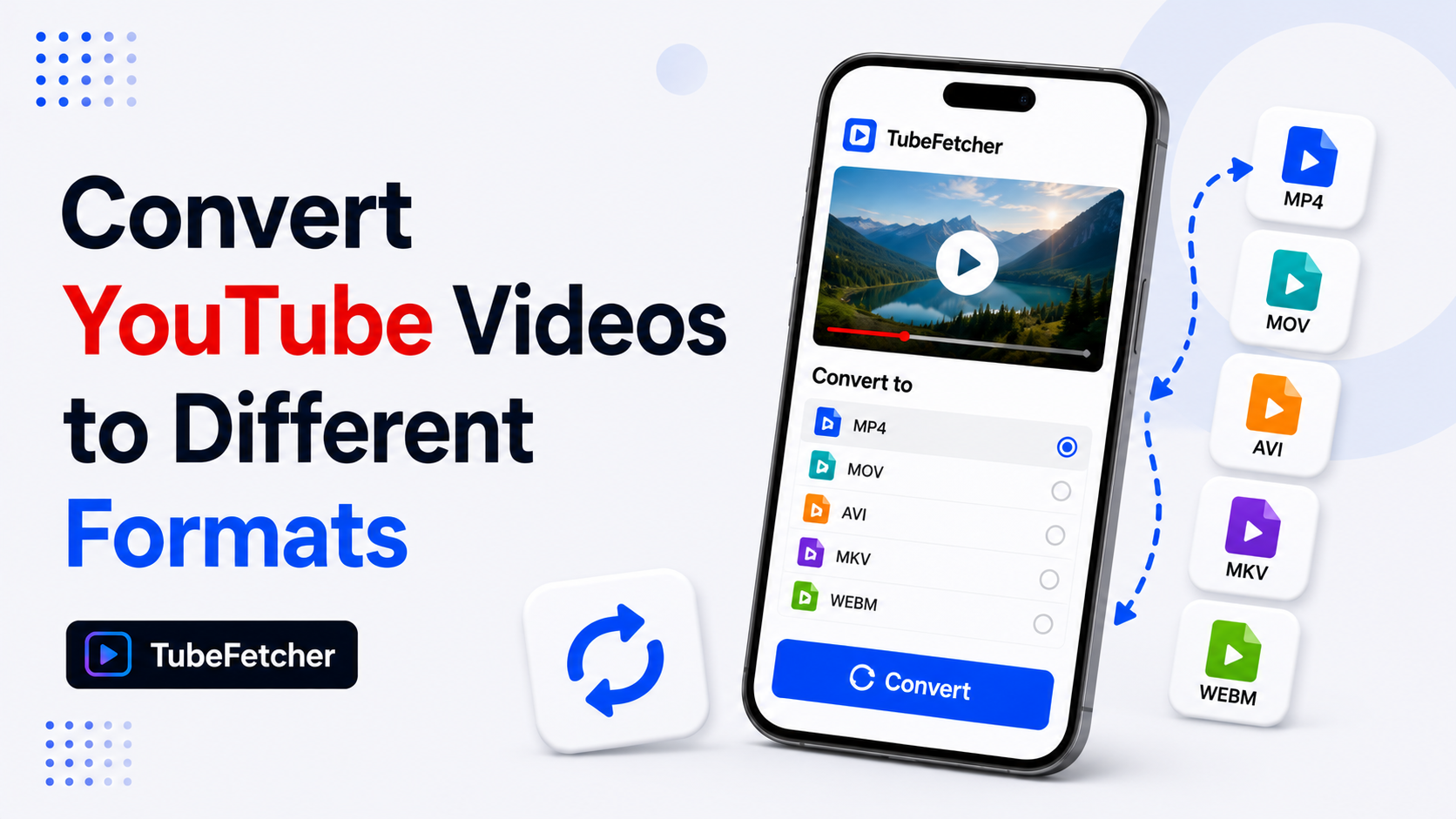
- Download any public YouTube video in MP4 or MP3
- Choose between 144p and 1080p+ resolutions
- Extract high-quality audio without needing another app
- Save files directly to a folder of your choice
- No login or browser setup required
How to Use TubeFetcher (Step-by-Step):
- Download TubeFetcher for Windows (Setup) from the official website and install it on your PC.
- Copy the YouTube video link you want to download.
- Launch TubeFetcher.
- Paste the URL into the input box.
- Choose the MP4 or MP3 format.
- Select the desired resolution (144p to 1080p+).
- Click the Download button.
- The file is saved to your selected folder, ready to play or transfer. (Need a broader walkthrough? See YouTube Downloader for Windows (Guide).
Who Uses TubeFetcher?
- Students who want to save lectures or tutorials for offline viewing
- Teachers backing up reference material
- Creators repurposing their own content
- Travelers preparing videos before a long trip
Method 3: Browser Extensions (Less Reliable)
Browser-based video downloaders were once a popular solution. Extensions like Video DownloadHelper let users initiate downloads directly from their browser.
However, due to YouTube’s technical changes and security policies, many extensions no longer work consistently. YouTube actively prevents this method, which can result in broken downloads or blocked tools.If you’re evaluating alternatives, read Download YouTube Videos with No Software (Guide) and the Free YouTube Downloaders Safety Guide, plus Is It Safe to Use YouTube Downloaders?.
How They Work:
- Install the extension from your browser’s extension store.
- Navigate to the YouTube video.
- Click the extension icon and choose the format/quality.
Issues and Limitations:
- Frequent breaks after browser or YouTube updates
- Hidden ads or forced use of paid versions
- Unclear privacy practices, some collect user data
- Limited format options
- Low success rate with HD or playlist videos
If you still want to try a browser-based option, be sure to research the extension and read reviews carefully.
Method 4: Downloading Your Own YouTube Videos
If you uploaded videos to your YouTube channel, you are fully allowed to download them using YouTube Studio. For the legal angle, see Can You Download Your YouTube Videos Legally? and How to Download YouTube Channel Videos (Legally).
Here’s how:
- Go to YouTube Studio.
- Click on Content from the left menu.
- Hover over the video you want to download.
- Click the three-dot menu next to the video.
- Select Download.
This gives you access to the original video file as uploaded (not the streamed version). You can then use TubeFetcher to reformat, compress, or convert the video as needed (see Best YouTube to MP4 Converter (Guide).
Use Case Scenarios for PC Downloading
Offline Learning
Students often download lectures, tutorials, or course videos to study without distractions. TubeFetcher makes this seamless, just copy the link, paste, download, and study anytime.
Content Archiving
Sometimes videos get taken down or made private. Downloading important tutorials or interviews ahead of time helps preserve knowledge and avoid content loss.
Business and Travel
Salespeople, trainers, and digital nomads often need to access videos during travel, especially where internet access is limited or restricted.
Repurposing Audio
TubeFetcher lets you extract MP3s from YouTube videos, allowing users to create offline audio libraries, voice notes, or podcast episodes from existing content.
File Formats, Quality, and Storage
MP4 vs. MP3
- MP4 is best for full video playback with audio.
- MP3 is ideal for voiceovers, music, or spoken content where visuals are not needed.
Choosing Resolution:
TubeFetcher supports:
- Low quality (144p–360p) for compact files or older devices
- Standard (480p–720p) for everyday viewing
- High (1080p+) for large screens or presentations
Choosing the right resolution depends on your storage and usage. If you need to conserve space, go with 360p. For HD viewing, pick 1080p.
Storage Tips:
- Create a dedicated folder for downloaded YouTube content.
- Use file naming with channel name, upload date, and topic.
- Back up important videos to an external drive.
Best Practices for Safe YouTube Downloading
Stick to Trusted Software
TubeFetcher is trusted by over 100,000 users and downloaded directly from its official site. Avoid random websites that promise “free downloads” but infect your system.
Don’t Violate Copyright
Downloading a song video and distributing it is not legal. Always respect content ownership.
Avoid Browser Tools with Ads
Many extensions redirect users, force ads, or slow down your system. Local apps like TubeFetcher skip that entirely.
Keep Your Tools Updated
YouTube’s backend changes frequently. Use actively maintained software and check the TubeFetcher Downloads page for updates.
What’s the Best Way to Download YouTube Videos on a PC?
YouTube Premium offers a safe option for temporary offline playback, but not for file saving. Browser extensions may work occasionally but are inconsistent and potentially risky. For users who want full control over video downloads, audio extraction, and local storage, TubeFetcher is the recommended solution (see also TubeFetcher vs YouTube Premium (Offline View)). It’s free, fast, native, and designed for privacy-conscious desktop users who value simplicity and security.
Frequently Asked Questions
Is it legal to download YouTube videos to a PC?
It depends. Downloading without permission or outside of YouTube’s built-in features may violate the platform’s Terms of Service. Learn more: Is It Legal to Download YouTube Videos?
Can I use TubeFetcher to get audio files?
Yes. You can extract MP3 audio directly from any public YouTube video. Guide: Download YouTube Audio to MP3 (Guide)
What if I want to download playlists?
Playlist support is not yet available, but it’s planned in a future version of TubeFetcher.
Is TubeFetcher safe?
Yes. It runs locally, without browser hijacking, tracking, or external data collection. For more on safety, see Is It Safe to Use YouTube Downloaders?
Will TubeFetcher work on Mac?
A macOS version is currently in development. For Windows users today, install TubeFetcher for Windows (Setup).