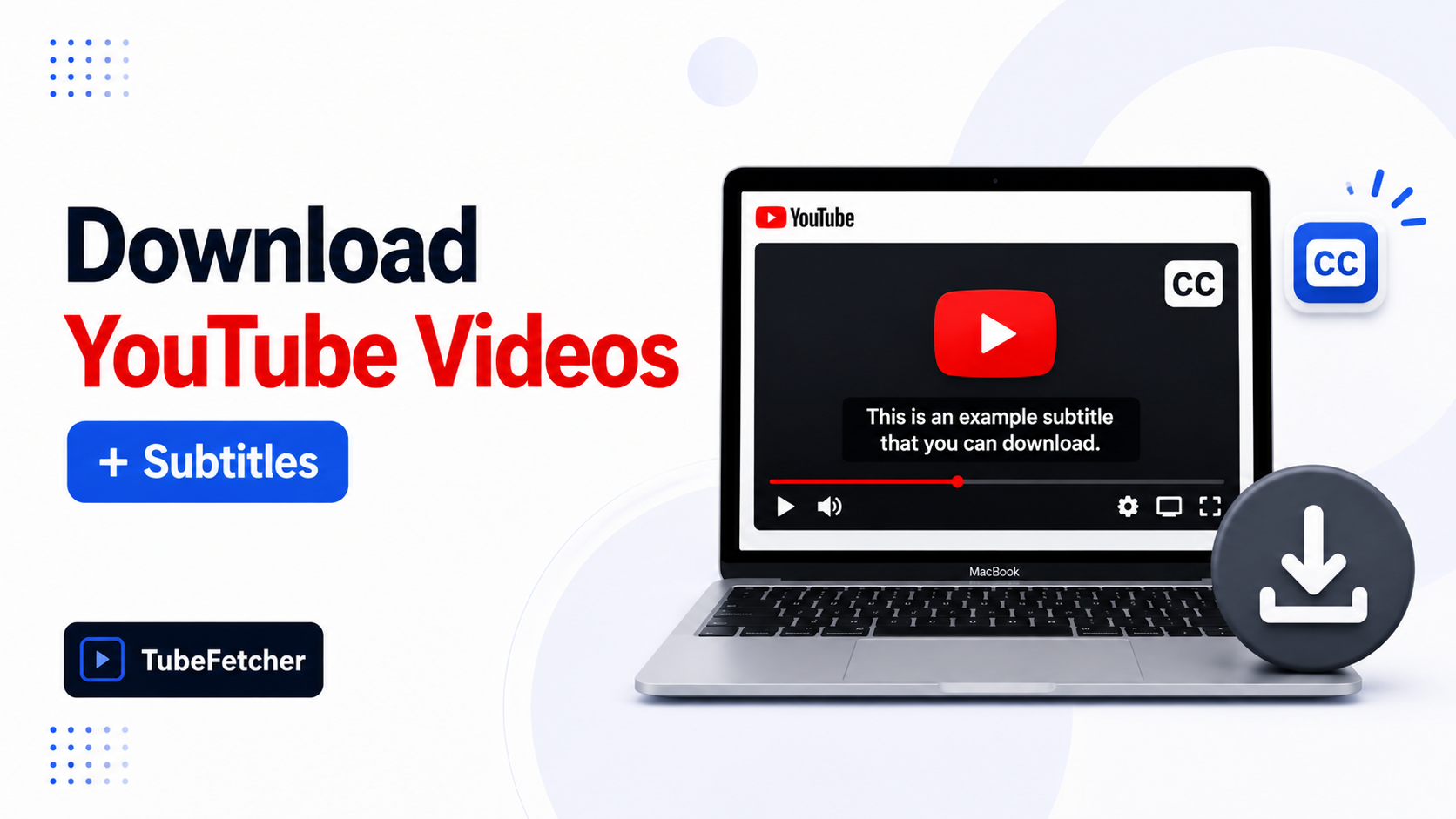
Most Mac downloaders ignore subtitles or embed them in ways that break later. The user gets a clean MP4 but no captions, or an MKV with hardcoded subtitles that cannot be turned off.
You can download a YouTube video with subtitles on Mac in three formats: as a separate SRT file you can edit, embedded in the video as a soft track you can toggle, or burned into the picture. Each format suits a different use case.
This guide covers the four methods that work on Mac, the subtitle formats each one produces, and how to handle multiple languages or auto-translation.
Why subtitle downloads usually fail on Mac
Most Mac downloaders pull video and audio cleanly but skip subtitles. The reason is technical: YouTube serves subtitles through a separate API call from the video stream, and many tools never make the second request. Three friction points appear across the Mac subtitle SERP:
- Free downloaders often have no subtitle option in the export settings
- Tools that support subtitles default to English only, missing creator-uploaded translations
- Auto-generated captions, marked [Music] or [Applause] placeholders, embed unreliably
A proper subtitle workflow on Mac needs three decisions before the download: format (SRT, VTT, or embedded), language (uploaded vs auto-translated), and burn-in (soft track or hardcoded into the picture).
Subtitle formats explained
The format you pick decides what you can do with the file afterward.
| Format | What it is | Editable | Best for |
| SRT (separate file) | Plain-text caption file | Yes | Editing, translation, accessibility |
| VTT (separate file) | Web caption file | Yes | Web embedding, HTML5 players |
| Soft-embedded (MKV) | Subtitle track inside container | Toggleable | Personal viewing, multi-language |
| Hardcoded (burned in) | Subtitles painted into video pixels | No | Social media, always-on captions |
SRT is the most flexible. It opens in any text editor, imports into video editors, and works with screen readers. Hardcoded subtitles cannot be turned off or edited after download.
Method 1: TubeFetcher with subtitle support
TubeFetcher downloads YouTube videos with subtitles on Mac as separate SRT files or embedded soft tracks. The Universal build runs on Intel and Apple Silicon Macs. No login, no cap, no ads.
The process uses five steps:
- Open the YouTube video and confirm subtitles are available (the CC icon shows in the player).
- Copy the URL from your browser.
- Paste the link into TubeFetcher.
- Select your video quality and tick the subtitle option with your language.
- Download. The MP4 and the SRT save to your Mac.
For videos with multiple subtitle tracks — original language plus translations — TubeFetcher lists each one. Pick the language you need or download all tracks for offline use. Get TubeFetcher for Mac.
Method 2: yt-dlp for advanced subtitle workflows
yt-dlp handles every subtitle scenario YouTube exposes: uploaded captions, auto-generated captions, embedded tracks, burn-in, and per-language selection. The trade-off is Terminal.
Install via Homebrew:
brew install yt-dlp ffmpeg
Download a video with English subtitles as a separate SRT file:
yt-dlp –write-sub –sub-lang en –convert-subs srt “VIDEO_URL”
Download with auto-generated captions when the creator has not uploaded subtitles:
yt-dlp –write-auto-sub –sub-lang en –convert-subs srt “VIDEO_URL”
Embed subtitles as a soft track inside the MP4 (toggleable in QuickTime and VLC):
yt-dlp –write-sub –sub-lang en –embed-subs “VIDEO_URL”
List every available subtitle language on a video:
yt-dlp –list-subs “VIDEO_URL”
The –sub-lang flag accepts multiple languages separated by commas. Use –sub-lang en,es,fr to grab English, Spanish, and French in one pass. yt-dlp updates almost daily and tracks YouTube’s caption API changes faster than any GUI tool.
Method 3: Browser tools (often limited)
Web converters like Cobalt, Lynote, and Y2Mate occasionally support subtitle download, but the feature is inconsistent.
Three real limits apply:
- Most browser tools download video only, with subtitles stripped during conversion
- Tools that do offer subtitles often support English only
- Auto-generated captions rarely transfer through web converters
Use browser routes for video-only downloads when subtitles are not required. For caption-dependent workflows, the desktop and Terminal methods are reliable.
Method 4: Download subtitles from YouTube directly
The official YouTube Studio download includes subtitle tracks for your own uploads.
For videos you uploaded:
- Sign in to YouTube Studio.
- Open the Subtitles tab in the left menu.
- Click the language you want and select Download.
- Choose .srt, .vtt, or .sbv format.
This route works only for content you own. For third-party videos, the methods above are the working options.
How to handle auto-generated captions
YouTube generates automatic captions on most videos when the creator has not uploaded their own. Auto-captions follow the speaker but include errors, especially on technical terms, names, and accented speech. Three details matter:
- Auto-captions are marked as auto-generated in the YouTube player’s caption menu
- Download tools treat auto-captions as a separate track from uploaded subtitles, often with a flag like –write-auto-sub in yt-dlp
- Translation accuracy drops further when YouTube applies auto-translation on top of auto-captions
For accessibility or professional use, uploaded captions are the reliable source. Auto-captions suit informal viewing where occasional errors are acceptable.
Multiple languages and auto-translation
YouTube auto-translates uploaded captions into 100+ languages on the fly. Most download tools fetch the original creator-uploaded track only, not the translated versions.
To download auto-translated captions through yt-dlp:
yt-dlp –write-auto-sub –sub-lang en-orig,es,fr –convert-subs srt “VIDEO_URL”
The en-orig flag pulls the creator’s original English caption. The es and fr flags request Spanish and French auto-translations. Output produces three SRT files alongside the video.
TubeFetcher displays available languages in the subtitle dropdown when the video has them. Pick the language you need before the download.
Which method fits your workflow
Match the method to what you need from the subtitle file:
- Single video with SRT for editing: TubeFetcher or yt-dlp.
- Multiple languages in one pass: yt-dlp with comma-separated –sub-lang flags.
- Your own uploaded videos: YouTube Studio Subtitles tab.
- Hardcoded burn-in for social media: yt-dlp with –embed-subs –convert-subs srt plus FFmpeg post-processing.
- Auto-translated captions: yt-dlp with –write-auto-sub.
Frequently Asked Questions
Can I download a YouTube video with subtitles on Mac?
Yes. TubeFetcher and yt-dlp both download subtitles alongside the video on Mac. Subtitles save as separate SRT files or embed as soft tracks inside the MP4.
What is the difference between SRT and embedded subtitles?
SRT is a separate text file you can edit in any text editor. Embedded subtitles sit inside the video container as a soft track. SRT suits editing and translation. Embedded suits playback without managing extra files.
Can I download auto-generated captions?
Yes. yt-dlp downloads auto-generated captions with the –write-auto-sub flag. Most GUI tools focus on creator-uploaded captions, which are more accurate than auto-generated ones.
Can I download subtitles in multiple languages at once?
Yes through yt-dlp. The –sub-lang flag accepts comma-separated language codes like en,es,fr to grab three tracks in a single pass.
Do all YouTube videos have subtitles?
No. Creators choose whether to upload captions. YouTube auto-generates captions on most videos in supported languages, but the original creator-uploaded tracks are more accurate.
Related Mac and Linux guides
For other Mac and Linux download tasks, the specific guides go deeper than this one:
- How to Download a YouTube Playlist on Mac — full playlists without freemium caps.
- How to Download YouTube Videos on Mac Without YouTube Premium — what Premium gives you and the real alternatives.
- How to Convert YouTube to MP3 on Linux (Free, No Terminal) — audio extraction across distributions.