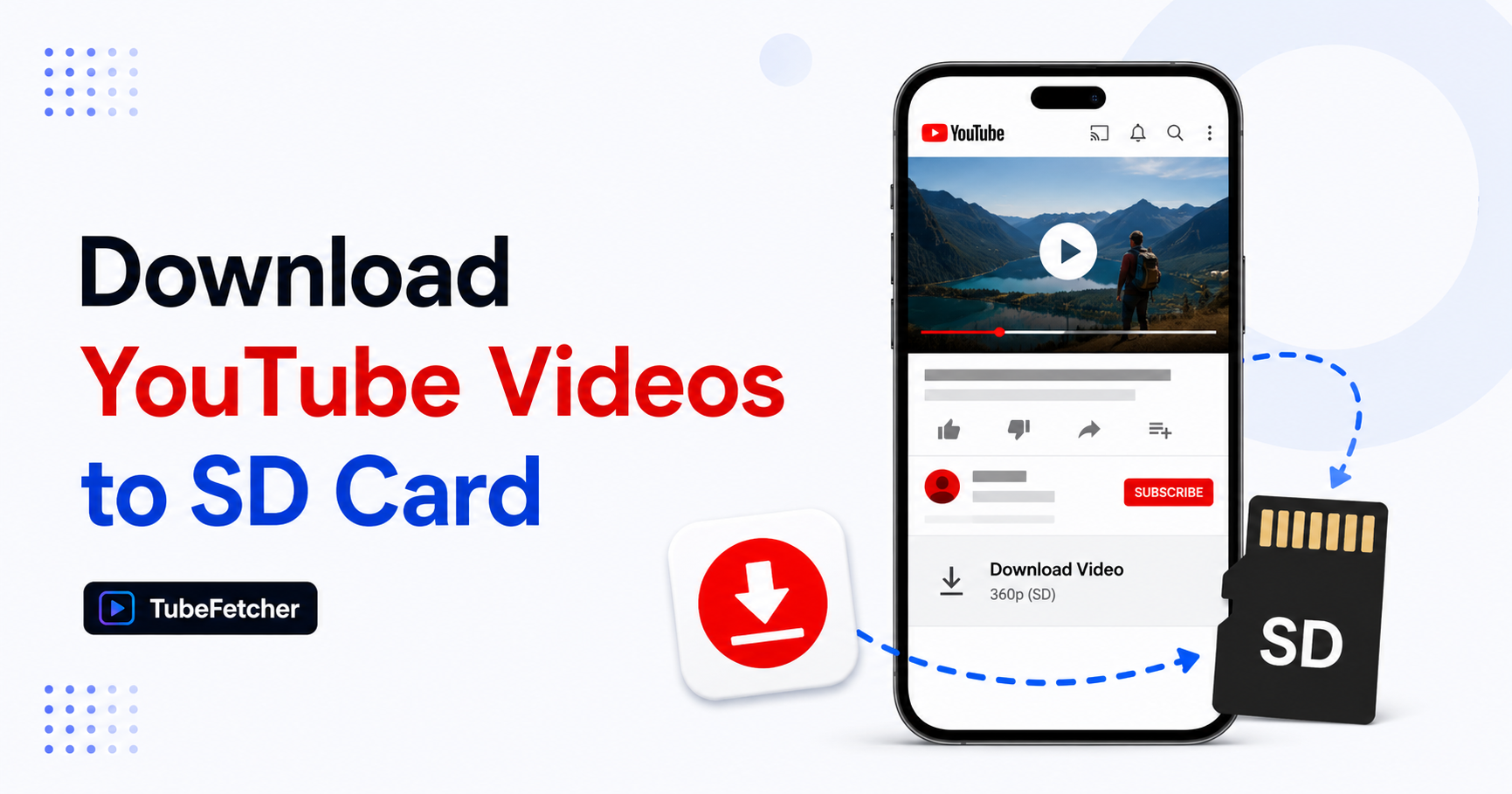
YouTube videos save to Android SD card through three routes: a downloader app configured with Storage Access Framework (SAF) permission for the SD card folder, a two-step download-then-move workflow through the Files app, or a manufacturer-specific setting on Samsung, Xiaomi, or Oppo devices that redirects the default Downloads folder to external storage.
Android 11 and later restrict direct-to-SD-card writes for most apps unless the user grants explicit SAF permission. TubeFetcher on Android handles the SD card workflow through its settings panel by requesting the SAF permission for the target SD card folder, which delivers downloads directly to external storage without the intermediate move step.
This guide covers the working SD card workflows across Android 10, 11, 12, 13, 14, and 15.
Why Android SD card downloads require extra setup
Android 10 introduced scoped storage, and Android 11 tightened the restriction further. The change removed direct file-system access for third-party apps and forced apps to use the Storage Access Framework (SAF) for external storage writes.
Three structural facts define the Android SD card download landscape:
- Scoped storage restricts apps to their own private directory by default. An app installed on Android 11+ cannot write to the SD card root without the user granting SAF permission.
- SAF permission grants folder-specific access. The user selects a folder on the SD card through Android’s file picker, and the app receives write access to that folder only.
- Manufacturer skins modify the default behavior. Samsung One UI, Xiaomi MIUI, Oppo ColorOS, and OnePlus OxygenOS each handle SD card permissions with variations from stock Android.
The combination means direct-to-SD-card YouTube downloads require the app to request SAF permission the first time the user changes the download destination, then remember that permission for future downloads.
Method 1: Save YouTube videos to SD card through TubeFetcher
TubeFetcher on Android downloads YouTube videos directly to the SD card when the user grants SAF permission for the target folder. The Universal APK runs on every Android device and architecture from Android 7 onward, and the SD card workflow requires a one-time permission grant.
The five-step SD card setup:
- Install the TubeFetcher Universal APK on Android.
- Open the settings panel in TubeFetcher and tap Save location.
- Select “SD card” from the storage picker and navigate to the target folder.
- Grant SAF permission when Android displays the folder-access prompt.
- Every subsequent download saves directly to the selected SD card folder.
The workflow bypasses the internal-storage-then-move step that other Android downloaders require. Videos land on the SD card at download completion, ready for playback in Gallery, VLC, or any Android video player.
Download TubeFetcher for Android, Universal APK for all devices and architectures.
For the same YouTube download workflow on other operating systems, download links for Mac, Windows, and Linux appear in the best free YouTube downloader comparison.
Method 2: Two-step download-then-move to SD card
The two-step workflow downloads YouTube videos to internal storage first, then moves the file to the SD card through the Files app. The route suits users who prefer not to grant SAF permission or whose Android version does not support the direct-to-SD-card path.
The four-step two-step workflow:
- Download the YouTube video to internal storage through TubeFetcher (default Downloads folder).
- Open the Files app or Google Files on Android.
- Locate the downloaded video, tap the three-dot menu, and select Move.
- Choose the target SD card folder as the destination.
The two-step workflow doubles the storage usage temporarily since the video exists on internal storage until the move completes. On devices with limited internal storage, this workaround fails for large downloads that exceed available internal space.
Method 3: Manufacturer-specific SD card default settings
Samsung, Xiaomi, and Oppo devices sometimes include a system setting that redirects the default Downloads folder to the SD card. When enabled, every app that saves to Downloads writes to the SD card instead of internal storage.
The Samsung One UI setting path:
- Open Settings, then tap Battery and device care.
- Tap Storage, then tap the three-dot menu.
- Select Advanced, then find the Default storage location option.
- Choose SD card as the default.
The Xiaomi MIUI setting path:
- Open Settings, then tap Additional settings.
- Tap Storage, then tap the Default storage option.
- Select SD card.
The setting affects every app that saves to the shared Downloads folder, so downloads from Chrome, WhatsApp, and other apps also redirect to the SD card. Users wanting per-app control skip this method in favor of Method 1.
How to verify the download reached the SD card
Successful SD card downloads appear in three places on Android:
- Files app > Categories > SD card > Downloads — the target folder shows the newly downloaded video
- Gallery app > Albums > SD card videos — Gallery indexes SD card video files automatically on most Android versions
- VLC or any video player > Browse tab > External storage — third-party video players access SD card files through their browse interface
If the downloaded video appears in internal storage instead of the SD card, the SAF permission likely did not grant successfully. Reopening TubeFetcher settings, tapping Save location, and reselecting the SD card folder re-triggers the SAF prompt.
SD card compatibility across Android versions
Android SD card behavior differs by version, and the differences affect which workflow applies to a specific device.
| Android version | Direct-to-SD-card | SAF required | Move-to-SD-card |
| Android 9 | Yes (with file permission) | No | Yes |
| Android 10 | Partial (scoped storage) | Sometimes | Yes |
| Android 11 | Only through SAF | Yes | Yes |
| Android 12 | Only through SAF | Yes | Yes |
| Android 13 | Only through SAF | Yes | Yes |
| Android 14 | Only through SAF | Yes | Yes |
| Android 15 | Only through SAF | Yes | Yes |
For every Android version from 11 onward, SAF permission is the only route to direct-to-SD-card YouTube downloads. Method 1 covers this workflow through TubeFetcher’s SAF integration.
Storage math: how many YouTube videos fit on an SD card
SD card capacity decides how many YouTube videos the user stores before running out of space. The file size varies by resolution, and the numbers below assume standard H.264 encoding.
The storage per hour of YouTube video breaks down as follows:
| SD card size | 720p videos (hours) | 1080p videos (hours) | 4K videos (hours) |
| 32 GB | 40 hours | 20 hours | 5 hours |
| 64 GB | 80 hours | 40 hours | 10 hours |
| 128 GB | 160 hours | 80 hours | 20 hours |
| 256 GB | 320 hours | 160 hours | 40 hours |
| 512 GB | 640 hours | 320 hours | 80 hours |
A 128GB SD card holds 80 hours of 1080p YouTube content, which suits users building offline libraries for travel, low-connectivity regions, or classroom playback. The 256GB and 512GB tiers suit long-form content collectors, gaming stream archivists, and users saving full YouTube playlists across dozens of hours.
Why SD card storage matters for Android YouTube downloaders
Three specific Android use cases benefit most from SD card downloads.
The three use cases:
Budget Android devices with limited internal storage
Android phones sold in emerging markets often ship with 32GB, 64GB, or 128GB of internal storage. Users of these devices exhaust internal storage quickly with app installations, photos, and downloaded YouTube content. SD card downloads route large files off the internal storage where the operating system needs headroom for updates and cache.
Travelers building offline video libraries
Long-haul flights, low-connectivity regions, and multi-week trips through areas with expensive mobile data drive Android users to preload YouTube content on SD cards. A 256GB SD card carries hundreds of hours of downloaded YouTube videos independent of internal storage capacity.
Students saving lecture videos and educational content
University students on shared or entry-level Android devices save lecture recordings, tutorial series, and study materials on SD cards. The workflow keeps educational content separate from personal photos and social media, and SD card removal transfers the entire content library between devices.
Cross-device transfer from SD card to Mac, Windows, Linux, or iPhone
Downloaded YouTube videos on an Android SD card transfer to other devices through three routes: SD card removal and direct card reader connection, USB cable connection with MTP mode, or wireless transfer through cloud sync services.
The three transfer routes:
- Card reader connection to Mac, Windows, or Linux — remove the SD card from Android, insert into a USB card reader, connect to the computer, and copy the files
- USB MTP mode — connect Android to Mac, Windows, or Linux via USB, select File Transfer or MTP mode, and browse to the SD card folder from the computer
- Wireless transfer — upload SD card files to Google Drive, iCloud Drive, or Dropbox from Android, then download to the destination device
For iPhone users, the wireless transfer route suits the workflow since iPhone does not accept Android SD cards directly. The iPhone Camera Roll guide covers the Android-to-iPhone workflow through cloud sync in detail.
The SD card workflow rewards one-time setup
Android SD card YouTube downloads reward the one-time SAF permission grant that unlocks direct-to-external-storage writes across every subsequent download. Method 1 through TubeFetcher covers the workflow that Android 11 and later require, and the setup takes under two minutes on the first use.
For Android users with limited internal storage, SD card downloads keep the internal drive free for the operating system, app installations, and system cache. The external storage tier absorbs the YouTube video library, travel content, lecture archives, playlist backups, without competing for the internal space that Android needs to run smoothly.
Related YouTube download guides
For deep-dives on YouTube storage workflows across devices and content types:
- How to Download YouTube Videos to iPhone Camera Roll Without Premium — iPhone workflow through desktop transfer
- Where Do Downloaded Videos Go on Mac, Windows, Linux, and Android — default file paths across every operating system
- YouTube Video Quality Download Guide — resolution and storage math for offline libraries