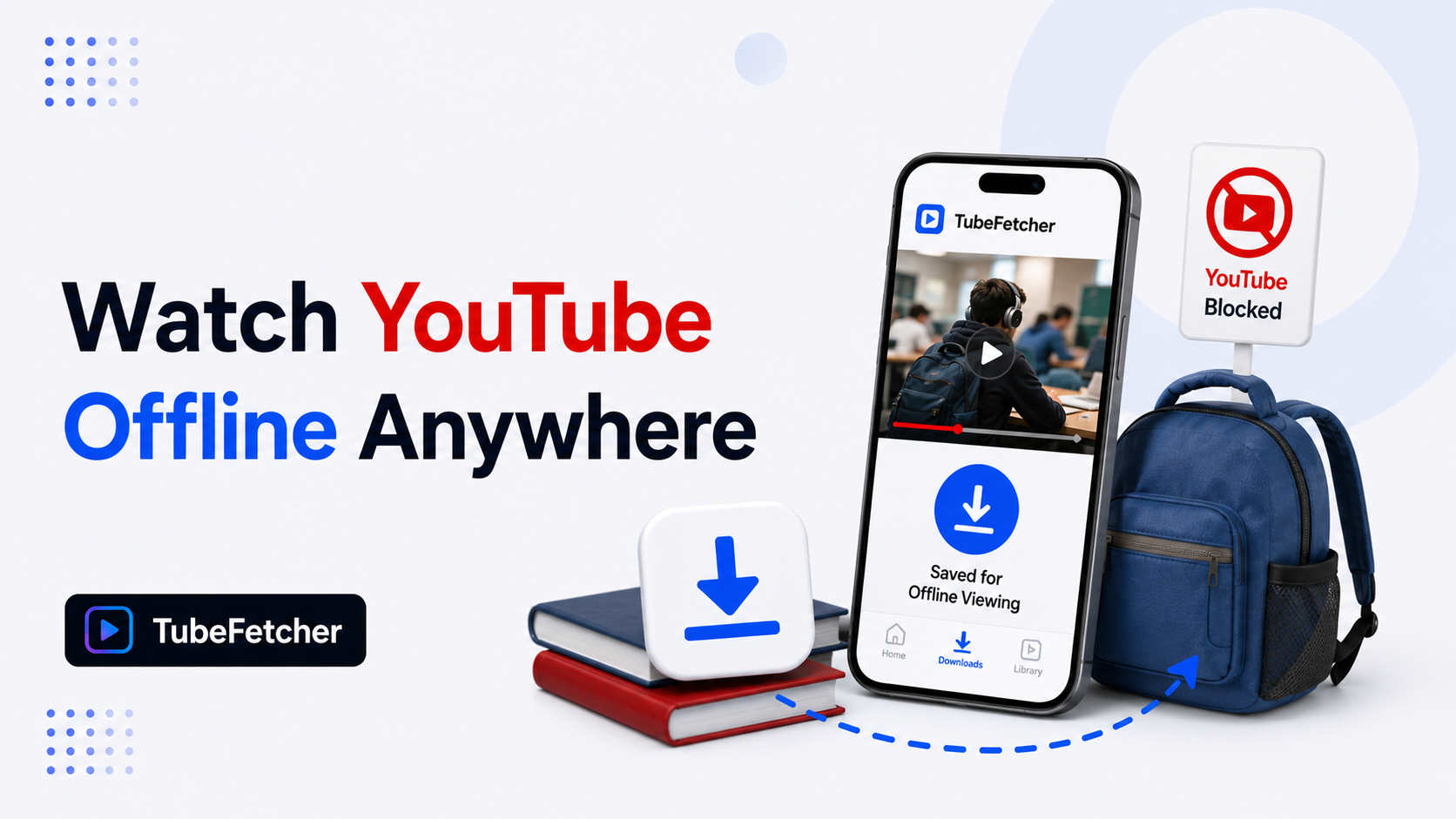
Blocked YouTube at school or work does not block local video files. Network filters restrict access to youtube.com and the YouTube app, but a downloaded MP4 saved to a laptop, phone, or USB drive plays from local storage without touching the network.
The workflow requires three steps: download the YouTube video on a home network where YouTube is accessible, transfer the file to the device carried to school or work, and play the local MP4 through any video player.
TubeFetcher handles the download step across Mac, Windows, Linux, and Android through the same paste-and-download flow. This guide covers the offline preparation workflow, the file formats that play across every device, and the storage math for building a school-or-work offline library.
Why blocked YouTube does not block local video files
Network filters at schools and workplaces block YouTube through DNS filtering, firewall rules, or content-inspection proxies. The block applies to the youtube.com domain, the YouTube mobile app’s network calls, and video-streaming requests. Local files stored on the user’s device do not trigger any of these filters because they do not require network access.
Three structural facts define the offline-viewing workflow:
- Downloaded MP4 files play from local disk without internet access. The video plays through the device’s video player, which reads from storage and outputs to the screen.
- YouTube’s own offline feature (Premium) stays inside the YouTube app. Blocked networks that block the YouTube app also block Premium’s offline playback, because the app itself cannot open.
- Local MP4 files play in any video player. QuickTime, VLC, Windows Media Player, and every mobile video player open standard MP4 files without domain-level dependencies.
The combination means the practical solution routes around the network filter entirely, the video plays from the local file, not from the blocked YouTube domain.
Method 1: Prepare offline YouTube videos with TubeFetcher
TubeFetcher downloads YouTube videos as MP4 files on Mac, Windows, Linux, and Android through a paste-and-download workflow. The video saves locally at the source quality, ready for transfer to the device carried to school or work.
The four-step preparation workflow:
- Open TubeFetcher on your home computer or phone where YouTube is accessible.
- Copy the YouTube video URL from any browser.
- Paste the link into TubeFetcher and select MP4 with the target resolution.
- Click download. The file saves locally, ready for transfer.
Download TubeFetcher for the device that prepares the offline files:
- Mac, Universal binary, Intel and Apple Silicon
- Windows, .exe installer
- Linux, AppImage, no install required
- Android, Universal APK for all devices
The Android APK suits users who prepare files on the phone at home, then carry the phone to school or work for offline viewing. The Mac, Windows, and Linux builds suit users who download on a home computer and transfer to a laptop or tablet. 100,000+ users in 30+ countries run TubeFetcher today. For first-run setup on any operating system, the TubeFetcher how-to guide covers installation across all four builds.
Method 2: Transfer offline files to the school or work device
The transfer step moves the downloaded MP4 from the home device to the device carried to school or work. Four transfer routes handle every device combination.
The four transfer routes:
- USB flash drive, copy the MP4 to a USB drive, then plug into the school or work laptop. Works on Mac, Windows, and Linux laptops with USB ports.
- AirDrop (Mac to iPhone or iPad), send from Mac to iOS device wirelessly, then Save to Photos through the Files app share sheet.
- Cloud sync (Google Drive, iCloud, Dropbox), upload from home, download at school or work on a personal device that has cloud access.
- Direct USB cable transfer, connect Android to laptop and copy files through MTP mode, or connect iPhone through Finder or iTunes.
For school and work laptops with cloud sync restrictions, the USB flash drive route works reliably. The MP4 copies to the drive at home, the drive plugs into the laptop, and the file plays through the local video player.
Method 3: Play the offline file at school or work
The playback step opens the local MP4 through any installed video player on the school or work device. Five video player options work across the standard operating systems.
The five playback options:
- VLC Media Player, free, open-source, plays every video format, available for Mac, Windows, Linux, iOS, and Android
- QuickTime Player, pre-installed on Mac, plays MP4 files natively
- Windows Media Player, pre-installed on Windows, plays standard MP4
- Photos app on iPhone, plays videos saved to Camera Roll
- Gallery app on Android, plays videos in the Downloads or SD card folder
Local playback does not touch the school or work network. The video reads from local storage and outputs to the screen through the video player, which runs entirely offline. Network filters that block youtube.com do not affect local file playback.
Storage math for building a school or work offline library
The storage needed for offline YouTube content depends on video resolution and library size. The numbers below assume H.264 encoding at YouTube’s standard bitrates.
| Storage capacity | 720p videos (hours) | 1080p videos (hours) | 4K videos (hours) |
| 16 GB USB drive | 20 hours | 10 hours | 2.5 hours |
| 32 GB USB drive | 40 hours | 20 hours | 5 hours |
| 64 GB phone free space | 80 hours | 40 hours | 10 hours |
| 128 GB laptop free space | 160 hours | 80 hours | 20 hours |
| 256 GB SD card | 320 hours | 160 hours | 40 hours |
A 32 GB USB drive holds 20 hours of 1080p YouTube content, which covers a full week of lecture recordings, training materials, or offline entertainment during commutes. The 128 GB tier suits users building semester-long offline libraries.
Five school and work scenarios that fit the offline workflow
The offline preparation workflow suits specific scenarios where network YouTube access is restricted but local file playback is permitted.
The five scenarios:
University students on restricted campus networks
Universities block YouTube on campus WiFi to conserve bandwidth or enforce academic focus policies. Students download lecture recordings, professor-uploaded educational content, and study material at home, then carry the files on laptop or phone to campus for offline study.
K-12 teachers using YouTube educational content in class
Teachers at schools that block YouTube prepare offline video files at home for classroom use. The downloaded MP4 plays through the classroom projector or smartboard without triggering the school’s YouTube filter. Educational content survives classroom use without requiring network access.
Remote workers on strict corporate networks
Corporate networks with strict content filtering block YouTube for productivity or bandwidth reasons. Remote workers who need YouTube reference content for training, industry research, or professional development download at home during personal time, then carry the files to work for reference.
Healthcare workers in bandwidth-restricted facilities
Hospital and clinic networks prioritize medical systems and block streaming platforms including YouTube. Healthcare staff who use YouTube for continuing education, procedure references, or professional development prepare files at home for on-shift viewing.
Public library and community center attendees
Public libraries and community centers with content filters block YouTube for user-experience or child-safety policies. Users who bring their own laptops or phones with pre-downloaded YouTube content bypass the filter through local playback.
Why YouTube Premium offline does not solve blocked-network viewing
YouTube Premium’s offline feature does not solve the blocked-network problem because Premium runs inside the YouTube app, and the YouTube app itself is blocked at the network level on restricted school and work networks.
Three specific limitations affect the Premium approach:
- The YouTube app requires initial network access to sync Premium downloads. Blocked networks that prevent the app from reaching YouTube servers prevent Premium’s offline playback from starting.
- Premium downloads expire every 29 days. The expiry requires reconnecting to YouTube to refresh the license, which fails on the blocked network.
- Premium’s saved videos stay inside the YouTube app. A locally downloaded MP4 file plays in any video player, but Premium’s cached files play only in YouTube.
For users on blocked networks, the standalone local file approach delivers the reliable offline experience that Premium does not.
The offline library approach scales across every restricted-network scenario
Preparation at home replaces network circumvention at school or work. The downloaded MP4 file plays regardless of what the network filter blocks, because the file lives on the user’s device rather than on the blocked YouTube domain. Local playback does not touch the network at all.
For students, teachers, remote workers, healthcare staff, and anyone else on restricted networks, the offline library approach delivers a reliable answer that scales across every scenario. Prepare files at home. Carry them on your device. Play them locally at school or work. The network filter blocks youtube.com, but it does not block the video already saved on your laptop, phone, or USB drive.
Related YouTube offline viewing guides
For deep-dives on offline YouTube workflows across devices and use cases:
- How to Download YouTube Videos on Mac Without YouTube Premium, Mac hub covering Premium alternatives and offline library building
- How to Download YouTube Videos to iPhone Camera Roll Without Premium, iPhone offline workflow for Photos playback
- How to Download YouTube Videos to SD Card Directly on Android, Android storage workflow for large offline libraries