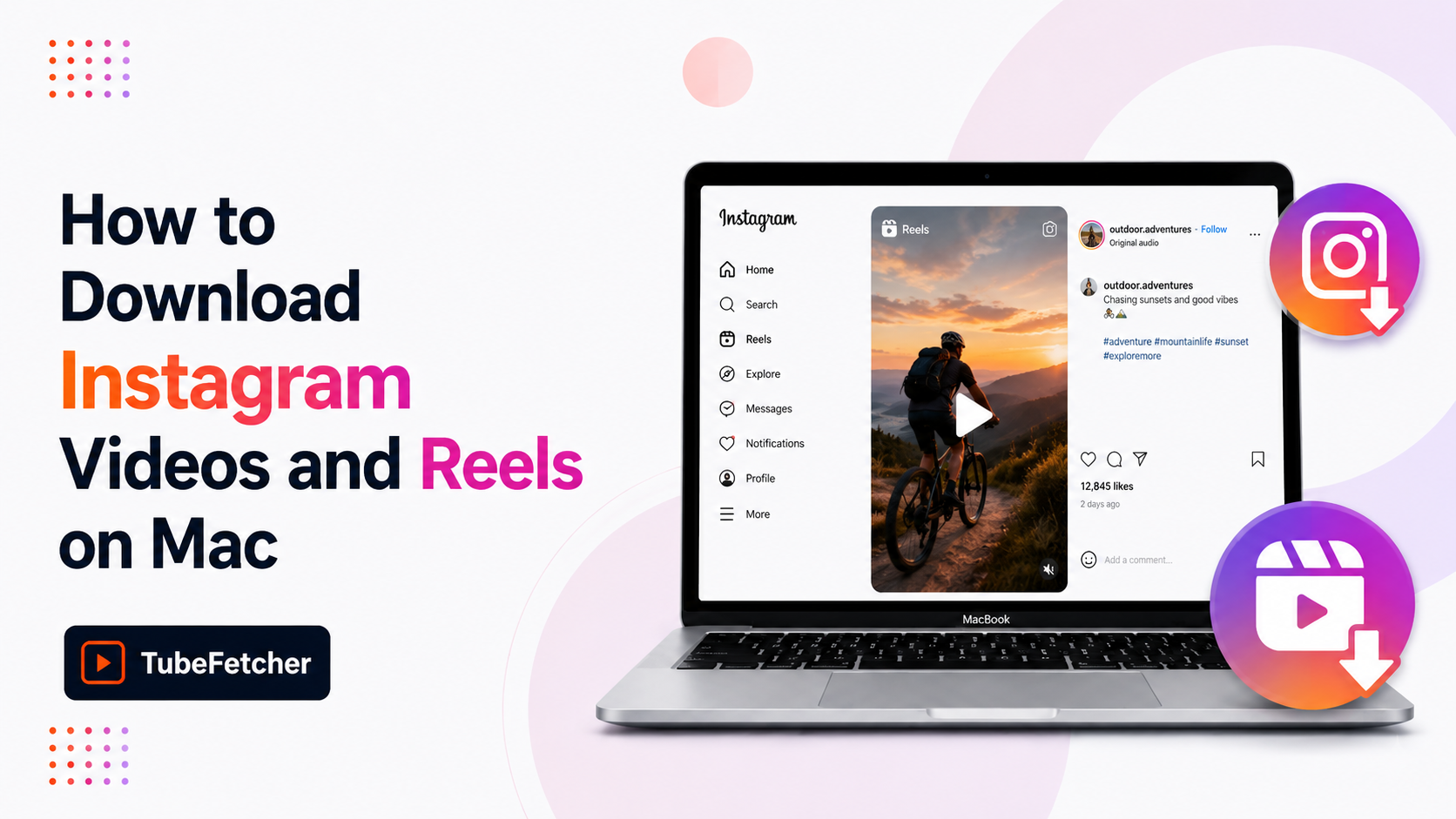
Instagram restricts video downloads through a deliberate platform choice: no save button exists on the Instagram desktop site, the mobile app saves only to Instagram’s own internal storage, and Stories disappear within 24 hours. Mac users wanting MP4 files of Reels for repurposing, Stories for archival, or feed videos for content research need a route Instagram doesn’t provide. TubeFetcher downloads Instagram videos, Reels, Stories, and IGTV on Mac as clean MP4 files with no account, no subscription, and no ads. This guide covers the four methods that work on macOS, the content types each handles, and where the desktop app approach fits versus command-line or browser alternatives.
Why Instagram makes video downloads on Mac difficult
Instagram restricts downloads through three structural choices that affect every Mac user trying to save a video. Unlike YouTube’s Premium offline cache or TikTok’s watermarked save, Instagram offers no native download path for viewers on macOS.
Three friction points define the Instagram Mac download problem:
- No download button on instagram.com. The Instagram desktop site shows the Share, Comment, and Save icons, but Save only bookmarks the post within Instagram, no MP4 file leaves the platform.
- The mobile Save feature stays in-app. Instagram’s mobile Save option stores videos to a Collection inside the Instagram app, which Mac users cannot access. There is no Mac equivalent.
- Stories expire within 24 hours. Time-limited content disappears from Instagram’s servers unless the creator manually saves it to Highlights, viewers have no native route to archive a Story before it vanishes.
The combination means Mac users hit a hard wall on every Instagram content type: feed videos, Reels, Stories, IGTV, and Live replays. The methods below cover the routes that produce an actual MP4 file.
Method 1: Download Instagram videos on Mac with TubeFetcher
TubeFetcher is the recommended Mac route for clean Instagram MP4 downloads. The Universal build runs on Intel and Apple Silicon Macs and handles every Instagram content type: feed videos, Reels, IGTV, Stories from public accounts, and Live replays where available. No Instagram account required, no subscription, no ads.
The four-step Mac flow:
- Open Instagram in any browser, find the video or Reel, and copy the URL from the address bar.
- Open TubeFetcher on your Mac.
- Paste the Instagram link and select MP4 with your preferred resolution.
- Click download. The clean MP4 saves locally to your Mac.
TubeFetcher handles Reels at the source vertical 9:16 ratio, feed videos in 1:1 square or 4:5 portrait, and IGTV in 9:16 vertical. The output is a standard MP4 file that imports into Final Cut Pro, DaVinci Resolve, Adobe Premiere, Photoshop, and any standard Mac video player. No watermark, no Instagram branding, no re-upload step.
Download TubeFetcher for your operating system:
- Mac, Universal binary for Intel and Apple Silicon
- Windows, .exe installer
- Linux, AppImage, no install required
- Android, Universal APK
100,000+ users in 30+ countries run TubeFetcher today. For first-run setup on macOS, the TubeFetcher how-to guide covers installation and the first download.
Why TubeFetcher fits Instagram content specifically
Instagram Mac downloaders fall into three categories: web converters (ad-heavy, often broken after Instagram API changes), browser extensions (often abandoned or removed from Chrome Web Store), and desktop apps. TubeFetcher fits the third category with four properties that matter for Instagram content:
- Every Instagram content type supported, Reels, feed videos, IGTV, public Stories, and Live replays
- Source resolution preserved, vertical Reels stay 9:16, square posts stay 1:1, no aspect ratio re-encoding
- No Instagram account required, downloads use public Instagram URLs without authentication
- No tracking or pop-ups, Instagram converter sites carry some of the highest ad density in the downloader category
The combination makes TubeFetcher the trusted Mac Instagram download path for content creators, marketers, and designers archiving Instagram content regularly.
Method 2: Instagram’s native “Save” feature (limited)
Instagram’s built-in Save feature stores posts to a Collection inside the Instagram mobile app. The Mac desktop site shows the same Save icon, but the saved post remains inside Instagram, no MP4 file extracts to the user’s Mac.
The Instagram Save process uses three steps:
- Open the Instagram post in the mobile app or desktop site.
- Tap or click the Save bookmark icon below the post.
- Find the saved post under Your Activity > Saved within Instagram.
Use Instagram’s native Save when bookmarking the post inside the app is enough, coming back to a Reel later, building a private Collection for reference, or organizing Saved posts by Collection name. Skip this route when an actual MP4 file on the Mac is the goal.
Method 3: yt-dlp for command-line Mac users
yt-dlp downloads Instagram videos on Mac through Terminal. The tool handles public Instagram posts, Reels, IGTV, and Stories where the user has legitimate access.
Install via Homebrew:
brew install yt-dlp ffmpeg
Download an Instagram post or Reel:
yt-dlp “https://www.instagram.com/p/POST_ID/”
Download an Instagram Reel specifically:
yt-dlp “https://www.instagram.com/reel/REEL_ID/”
Download an Instagram user’s recent posts (where permissions allow):
yt-dlp “https://www.instagram.com/USERNAME/”
yt-dlp updates regularly and tracks Instagram’s API changes faster than any GUI tool. The trade-off is Terminal, for a paste-and-click workflow without command syntax, TubeFetcher delivers the same MP4 output.
Method 4: Browser-based Instagram downloaders
Web converters extract Instagram videos through sites that accept an Instagram URL and return an MP4 file. Tools like SnapInsta, FastDl, and SaveFrom sit in this category.
Three real limits apply on Instagram specifically:
- High failure rate after Instagram updates, Instagram changes its API regularly, which breaks web converters faster than desktop apps
- Aggressive ad density, Instagram converter sites carry pop-ups, fake download buttons, and redirect chains
- No support for Stories or private content, browser tools cannot authenticate, so time-limited or follower-only content stays out of reach
Use browser routes for one-off public Instagram videos when no install is acceptable. Skip them for Reels you plan to edit, Stories you want to archive, or any private content.
Instagram content types: how each method handles them
The content-type behavior splits cleanly by method, which decides which approach fits a given use case.
| Method | Reels | Feed videos | IGTV | Stories | Live replays |
| TubeFetcher | Yes | Yes | Yes | Public only | Where available |
| Instagram’s native Save | In-app only | In-app only | In-app only | In-app only | No |
| yt-dlp | Yes | Yes | Yes | Where accessible | Where available |
| Browser converter | Often | Often | Sometimes | No | No |
For Mac users repurposing Instagram content for editing or cross-platform sharing, TubeFetcher and yt-dlp produce comparable MP4 output across content types. The difference is workflow, TubeFetcher requires no Terminal.
Five Mac workflows for Instagram video downloads
The desktop app approach fits five specific Mac scenarios where Instagram MP4 access matters most.
Content creators repurposing Reels for other platforms
Mac creators cross-posting Reels to TikTok, YouTube Shorts, and X need clean source MP4 files without the Instagram watermark or aspect-ratio re-encoding. TubeFetcher’s source-resolution output drops into video editors at the original 9:16 ratio.
Marketers researching competitor Instagram strategy
Brand teams analyzing competitor Reels, story sequences, and feed video performance pull MP4 files for slide decks, internal reports, and trend research. The single-app workflow speeds up the per-account competitor sweep without logging into Instagram.
Designers archiving inspiration boards
Designers building motion design references collect Instagram Reels alongside Vimeo professional work and TikTok trends. The clean MP4 output imports into Figma, After Effects, and Cinema 4D for animation study.
Educators saving public educational Reels
Teachers saving language-learning Reels, science explanation videos, and tutorial content build offline libraries for classroom use. The MP4 plays in any media player without requiring Instagram access during teaching.
Users archiving expiring Stories
Stories disappear in 24 hours unless the creator saves them to Highlights. Viewers who want to archive a public Story before it vanishes, for personal reference, design inspiration, or news context, need a route Instagram does not provide natively.
How to start downloading Instagram videos on Mac today
The setup takes three steps:
- Install TubeFetcher on your Mac through the Universal binary linked above.
- Copy any Instagram URL from the address bar or share menu.
- Paste, select MP4, and download.
Never enter your Instagram password into a third-party app. Legitimate Mac downloaders use public Instagram URLs and your existing browser session; they do not require Instagram credentials.
Related Mac download guides
For other Mac video and audio download workflows beyond Instagram, the deep-dive guides cover related intents:
- How to Save Videos from Multiple Platforms on Mac: the unified Mac multi-platform workflow
- How to Download TikTok Videos on Mac Without Watermark, Clean MP4 from TikTok on Mac
Frequently Asked Questions
Can I download Instagram videos on Mac without an Instagram account?
Yes. TubeFetcher downloads public Instagram videos, Reels, and IGTV on Mac without requiring an Instagram account. The app uses public Instagram URLs and saves the MP4 file directly to your Mac.
Does Instagram allow video downloads on Mac?
No. Instagram offers no native download path on macOS, the desktop site has no download button, and the mobile Save feature stores posts inside the Instagram app only, with no MP4 export to Mac storage.
Can I download Instagram Stories before they expire?
Yes. TubeFetcher downloads public Instagram Stories as MP4 files on Mac before the 24-hour expiry. Private Stories require legitimate access through the follower account that has permission to view them.
What file format does TubeFetcher save Instagram videos in?
TubeFetcher saves Instagram videos as MP4 files at source resolution. Reels stay 9:16 vertical, feed videos stay 1:1 or 4:5, and IGTV stays 9:16, no aspect ratio re-encoding applied.
Does TubeFetcher work on Apple Silicon Macs?
Yes. The Universal binary runs natively on Apple Silicon Macs (M1, M2, M3, M4) and Intel Macs. The same Instagram download capability exists on both architectures.