
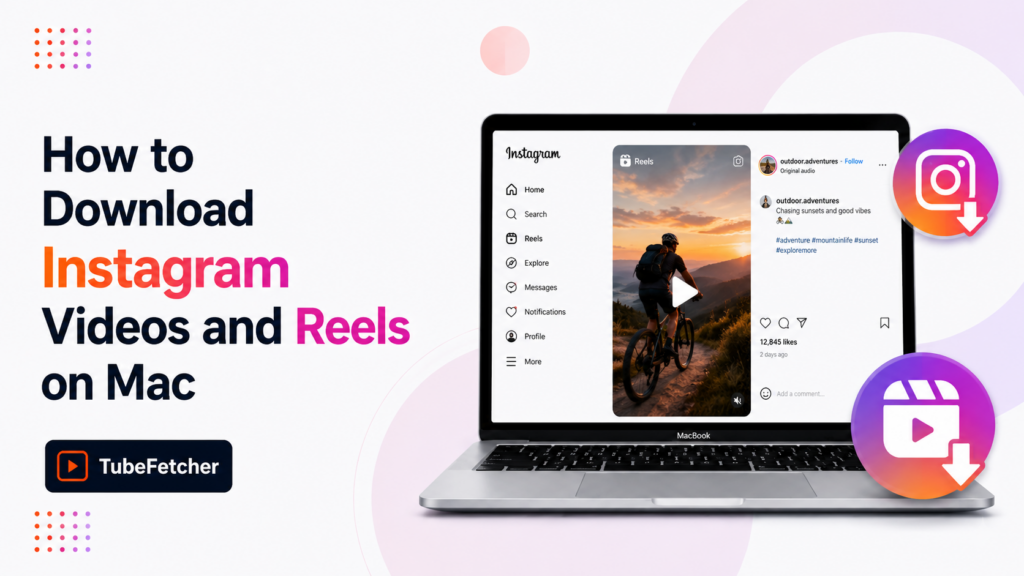
How to Download Instagram Videos and Reels on Mac
Instagram restricts video downloads through a deliberate platform choice: no save button exists on the Instagram desktop site, the mobile app saves only to Instagram’s own internal storage, and Stories disappear within 24 hours. Mac users wanting MP4 files of Reels for repurposing, Stories for archival, or feed videos for content research need a route Instagram doesn’t provide. TubeFetcher downloads Instagram videos, Reels, Stories, and IGTV on Mac as clean MP4 files with no account, no subscription, and no ads. This guide covers the four methods that work on macOS, the content types each handles, and where the desktop app approach fits versus command-line or browser alternatives. Why Instagram makes video downloads on Mac difficult Instagram restricts downloads through three structural choices that affect every Mac user trying to save a video. Unlike YouTube’s Premium offline cache or TikTok’s watermarked save, Instagram offers no native download path for viewers on macOS. Three friction points define the Instagram Mac download problem: The combination means Mac users hit a hard wall on every Instagram content type: feed videos, Reels, Stories, IGTV, and Live replays. The methods below cover the routes that produce an actual MP4 file. Method 1: Download Instagram videos on Mac with TubeFetcher TubeFetcher is the recommended Mac route for clean Instagram MP4 downloads. The Universal build runs on Intel and Apple Silicon Macs and handles every Instagram content type: feed videos, Reels, IGTV, Stories from public accounts, and Live replays where available. No Instagram account required, no subscription, no ads. The four-step Mac flow: TubeFetcher handles Reels at the source vertical 9:16 ratio, feed videos in 1:1 square or 4:5 portrait, and IGTV in 9:16 vertical. The output is a standard MP4 file that imports into Final Cut Pro, DaVinci Resolve, Adobe Premiere, Photoshop, and any standard Mac video player. No watermark, no Instagram branding, no re-upload step. Download TubeFetcher for your operating system: 100,000+ users in 30+ countries run TubeFetcher today. For first-run setup on macOS, the TubeFetcher how-to guide covers installation and the first download. Why TubeFetcher fits Instagram content specifically Instagram Mac downloaders fall into three categories: web converters (ad-heavy, often broken after Instagram API changes), browser extensions (often abandoned or removed from Chrome Web Store), and desktop apps. TubeFetcher fits the third category with four properties that matter for Instagram content: The combination makes TubeFetcher the trusted Mac Instagram download path for content creators, marketers, and designers archiving Instagram content regularly. Method 2: Instagram’s native “Save” feature (limited) Instagram’s built-in Save feature stores posts to a Collection inside the Instagram mobile app. The Mac desktop site shows the same Save icon, but the saved post remains inside Instagram, no MP4 file extracts to the user’s Mac. The Instagram Save process uses three steps: Use Instagram’s native Save when bookmarking the post inside the app is enough, coming back to a Reel later, building a private Collection for reference, or organizing Saved posts by Collection name. Skip this route when an actual MP4 file on the Mac is the goal. Method 3: yt-dlp for command-line Mac users yt-dlp downloads Instagram videos on Mac through Terminal. The tool handles public Instagram posts, Reels, IGTV, and Stories where the user has legitimate access. Install via Homebrew: brew install yt-dlp ffmpeg Download an Instagram post or Reel: yt-dlp “https://www.instagram.com/p/POST_ID/” Download an Instagram Reel specifically: yt-dlp “https://www.instagram.com/reel/REEL_ID/” Download an Instagram user’s recent posts (where permissions allow): yt-dlp “https://www.instagram.com/USERNAME/” yt-dlp updates regularly and tracks Instagram’s API changes faster than any GUI tool. The trade-off is Terminal, for a paste-and-click workflow without command syntax, TubeFetcher delivers the same MP4 output. Method 4: Browser-based Instagram downloaders Web converters extract Instagram videos through sites that accept an Instagram URL and return an MP4 file. Tools like SnapInsta, FastDl, and SaveFrom sit in this category. Three real limits apply on Instagram specifically: Use browser routes for one-off public Instagram videos when no install is acceptable. Skip them for Reels you plan to edit, Stories you want to archive, or any private content. Instagram content types: how each method handles them The content-type behavior splits cleanly by method, which decides which approach fits a given use case. Method Reels Feed videos IGTV Stories Live replays TubeFetcher Yes Yes Yes Public only Where available Instagram’s native Save In-app only In-app only In-app only In-app only No yt-dlp Yes Yes Yes Where accessible Where available Browser converter Often Often Sometimes No No For Mac users repurposing Instagram content for editing or cross-platform sharing, TubeFetcher and yt-dlp produce comparable MP4 output across content types. The difference is workflow, TubeFetcher requires no Terminal. Five Mac workflows for Instagram video downloads The desktop app approach fits five specific Mac scenarios where Instagram MP4 access matters most. Content creators repurposing Reels for other platforms Mac creators cross-posting Reels to TikTok, YouTube Shorts, and X need clean source MP4 files without the Instagram watermark or aspect-ratio re-encoding. TubeFetcher’s source-resolution output drops into video editors at the original 9:16 ratio. Marketers researching competitor Instagram strategy Brand teams analyzing competitor Reels, story sequences, and feed video performance pull MP4 files for slide decks, internal reports, and trend research. The single-app workflow speeds up the per-account competitor sweep without logging into Instagram. Designers archiving inspiration boards Designers building motion design references collect Instagram Reels alongside Vimeo professional work and TikTok trends. The clean MP4 output imports into Figma, After Effects, and Cinema 4D for animation study. Educators saving public educational Reels Teachers saving language-learning Reels, science explanation videos, and tutorial content build offline libraries for classroom use. The MP4 plays in any media player without requiring Instagram access during teaching. Users archiving expiring Stories Stories disappear in 24 hours unless the creator saves them to Highlights. Viewers who want to archive a public Story before it vanishes, for personal reference, design inspiration, or news context, need a route Instagram does not provide natively. How to start downloading Instagram videos on Mac today The setup takes three steps: Never enter your Instagram password into a third-party